
Check Requirements
Checks system requirements on the user's machine at the beginning of the installation process. You can get the current version of .NET Framework on user's machine by the using netframever variable. The version of Windows is stored in osplatfrom, osmajor and osminor variables.
Description
Optionally, you may add comments here describing the purpose of this element.
What to Check
You can select the following resource types to be checked.
.NET Framework 1.0 - if the user has .NET Framework >= v1.0.
.NET Framework 2.0 - if the user has .NET Framework >= v2.0.
.NET Framework 3.0 - if the user has .NET Framework >= v3.0.
.NET Framework 3.5 - if the user has .NET Framework >= v3.5.
.NET Framework 4.0 - if the user has .NET Framework >= v4.0.
.NET Framework 4.5 - if the user has .NET Framework >= v4.5.
.NET Framework 4.7 - if the user has .NET Framework >= v4.7.
.NET Framework 4.8 - if the user has .NET Framework >= v4.8.
>= Windows NT4 - User's Windows version must be greater or equal to NT4.
>= Windows XP - User's Windows version must be greater or equal to XP.
>= Windows Vista - User's Windows version must be greater or equal to Vista.
>= Windows 7 - User's Windows version must be greater or equal to Windows 7.
>= Windows 8 - User's Windows version must be greater or equal to Windows 8.
>= Windows 10 - User's Windows version must be greater or equal to Windows 10.
Installed .NET Framework 2.0 - if the user has .NET Framework v2.0.
Installed .NET Framework 3.0 - if the user has .NET Framework v3.0.
Installed .NET Framework 3.5 - if the user has .NET Framework v3.5.
Installed .NET Framework 4.0 - if the user has .NET Framework v4.0.
Administrator - check for administrator privileges.
Negation of Condition
Checked =>Negates the condition ( false => true, true => false ).
Resulting variable
The result of the check will be stored in the variable you name here. It equals 1 if the condition is TRUE. You can use this variable further as #varname#.
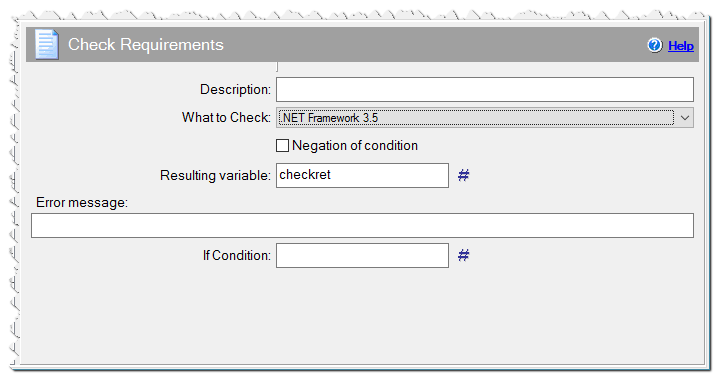
Check Requirements command
Error Message
Optionally specify a text message here. If the condition is FALSE then the user will see a warning message box with 'Retry' or 'Cancel' actions.
Install .NET Framework version 3.5!
If Condition
You can specify a condition that should be met for the action to be performed. If the condition is false then the command is skipped. See How to use If Condition for more details.