
Decompress CAB file
Unpacks CAB archive file to the specified directory. CAB is a standard Microsoft archive format. We recommend increasing the size of files for the progress-bar with the command Progress Settings (Additional Size).
Description
Optionally, you may add comments here describing the purpose of this element.
Path
Choose the path in which the cab file is placed.
APPLICATION DATA PATH - Program subfolder in Application Data folder.
CDROM PATH - CD or DVD drive.
CUSTOM PATH - The path must be defined in the filename control.
INSTALL PATH - Default installation path.
SETUP FILE PATH - The path to where setup executable file is running.
SYSTEM PATH - Windows system directory.
TEMPORARY PATH - The temporary folder of the installation #tempinstpath#. It is a subfolder genteeXX in the default temporary user's folder #temppath#.
WINDOWS PATH - Windows directory.
Filename [CAB]
Specify the name of the archive CAB file to be unpacked.
mydata.cab
Destination folder
Choose the destination path in which files and folders will be unpacked.
APPLICATION DATA PATH - Program subfolder in Application Data folder.
CDROM PATH - CD or DVD drive.
CUSTOM PATH - The path must be defined in the filename control.
INSTALL PATH - Default installation path.
SETUP FILE PATH - The path to where setup executable file is running.
SYSTEM PATH - Windows system directory.
TEMPORARY PATH - The temporary folder of the installation #tempinstpath#. It is a subfolder genteeXX in the default temporary user's folder #temppath#.
WINDOWS PATH - Windows directory.
Custom Path
Here you can specify any destination path, if CUSTOM PATH is selected in the Destination folder field.
If the File Exists
What should be done if a file being installed already exists on user's hard drive.
Skip - do not extract the file.
Overwrite - overwrite the existing file.
Overwrite if newer - overwrite the file only if the file is newer or has a later version than the already existing one.
Ask - prompt the user to select an appropriate action.
Ask if newer - request directions from user only if the file is newer or has a later version than the already existing one. Otherwise, the file will be skipped.
Note! If a file must be updated, but is locked by the system or by other applications, at the end of the installation the user will be asked to reboot the computer. Such files will be updated after the reboot.
Wildcards to decompress
Specify wildcards or filenames you want to unpack. Separate them with a comma or a semicolon. Leave this field blank, or enter *.* if you want to unpack all files.
*.exe,*.txt
If Condition
You can specify a condition that should be met for the action to be performed. If the condition is false then the command is skipped. See How to use If Condition for more details.
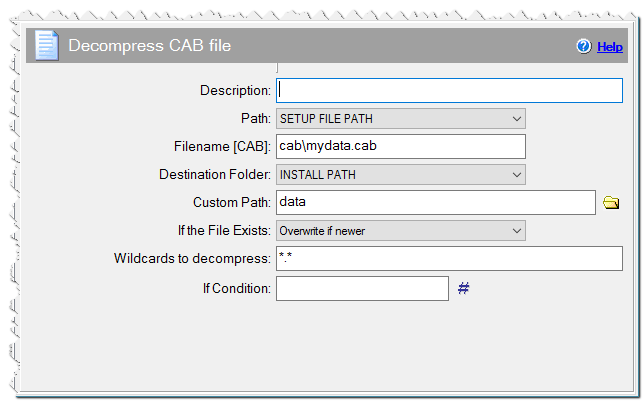
Decompress CAB file command