
Installing 64-bit applications
CreateInstall is a 32-bit application and it can only create 32-bit installations, but you can also use the installer to install 64-bit applications. If you have a 64-bit version of Windows, all 64-bit applications are installed in the Program Files directory, but 32-bit applications are installed in the Program Files (x86). It should be noted that there is automatic redirection for 32-bit applications from the Program Files to Program Files (x86). Therefore, even if you specify the installation path as the Program Files, your files will be decompressed to the Program Files (x86) folder. You must first disable the redirect to resolve this issue and install the 64-bit program in Program Files . To do this, insert a WOW64Redirection On/Off command before decompressing files or at the beginning of the script. Select 64xRedirection State as Off there. If necessary, you can further enable the redirect back with the same command. You can specify a variable name for getting 64-bit Program Files in the Variable name parameter . This command has no effect on 32-bit versions of Windows and, in this case, the default Program Files is assigned to the variable.
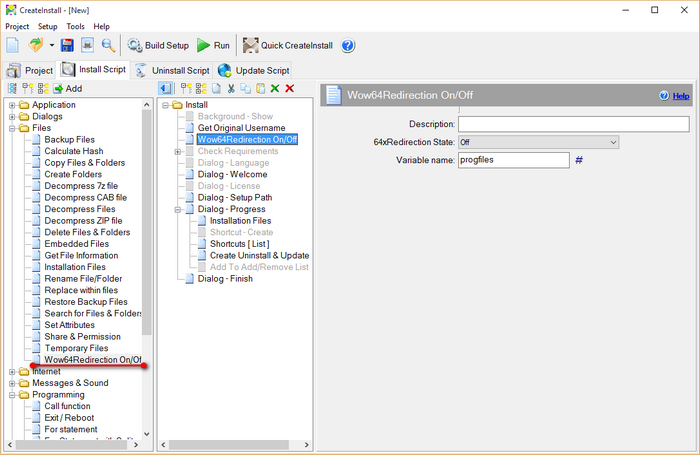
Redirect command
If you install only the 64-bit application, then just point out there progfiles and the installation path will be automatically changed. Otherwise, do not forget to change the installation path before unpacking or other actions with files. For example, setuppath => #progfiles64#\My Application.
It should be noted that the automatic redirection is applied not only to the directory Program Files, but also to the system directory Windows. All 32-bit applications are redirected to the SysWOW64 when they try to access the System32 . When the redirect is switched off you can install the 64-bit files in the System32.
Disabling the standard Windows redirection allows you to create installations which can install 64-bit or 32-bit version, depending on the version of user's Windows. For example, there is a variable os64 which is equal to 1 on 64-bit versions of Windows and is equal to 0 on 32-bit versions. Specify If Condition parameter like os64 or !os64 to execute corresponding commands and install required files depending on the user's Windows.
Disabling the automatic redirection makes it is possible to install 32-bit applications in the Program Files on 64-bit versions of Windows. Do not use this method for such purposes!