
Uninstaller in CreateInstall Assistant
Enter uninstallation settings for your application
Include Uninstaller
If you check this box an uninstaller will automatically be created upon installation of your application, which allows deletion of the application from the user's computer in the future.
Path
A directory where the uninstall executable file will be created.
APPLICATION DATA PATH - Program subfolder in Application Data folder.
CUSTOM PATH - The path must be defined in the filename control.
INSTALL PATH - Default installation path.
SYSTEM PATH - Windows system directory.
TEMPORARY PATH - The temporary directory of the installation #tempinstpath#. It is a subfolder genteeXX in the default temporary user's folder #temppath#.
WINDOWS PATH - Windows directory.
Uninstall Executable File
The uninstall executable file name.
Icon File
You can choose an icon for the uninstaller from the recommended list or enter your own .ico file.
Uninstall Log Filename
The uninstall log filename. All files, keys and objects that are created during the installation process are stored in it.
Create Uninstall Shortcut
Check this box if you want to create a shortcut for the uninstaller. It will be located in the shortcut folder.
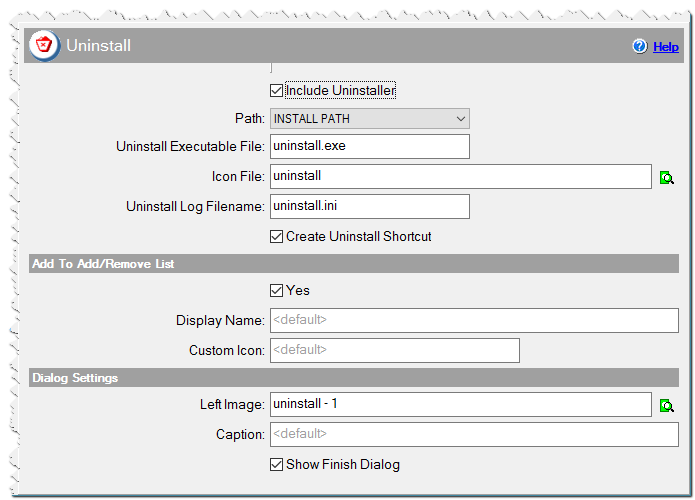
Uninstaller in CreateInstall Assistant installer
Add to Add/Remove list
These options concern the standard Programs directory and its components, where the user can view a list of installed programs and delete them.
Yes
Check this box if you want your program to be included in the list.
Display Name
By default your program's name in the list will be the same as the name of your application, but you can enter a different name here.
Custom Icon
By default the uninstaller icon will be shown, but you can specify a different icon. The icon must be installed together with the application and be located in the same directory as the uninstaller itself. Enter an .ico file.
myfile.ico
Dialog Settings
Left Image
You can chose a left image from the recommended list or enter your own file with an image. The left image is used in the confirm deletion and deletion complete dialogs.
Caption
If you do not like the standard heading in deinstallation dialogs you can enter your own text.
Show Finish Dialog
Check this box if you want to show a deletion complete dialog.