
How to sign an installation
Why do you need a code signing certificate?
Code-signing is designed to indicate the author of a program and show that the program or file has not been altered by other persons. If someone tries to modify a signed program, the code signature will imediately become invalid. This is the main purpose of code signing.
The second benefit of signed programs and installation is that antivirus programs are more loyal to signed applications. False positives and unwarranted quarantine hits (again, not quite sure) are more rare for signed programs.
Also compare the messages that UAC shows upon the launch of a signed and unsigned installation. The message for a signed installation encourages the user to have more trust.
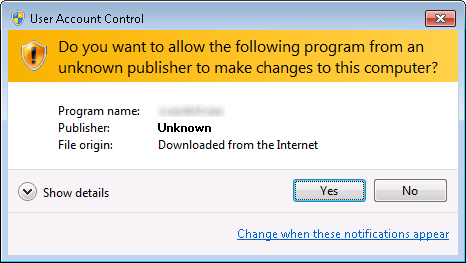
Installation without code signature
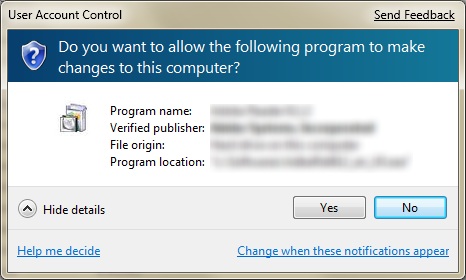
Signed instalation
How to get a code signature
You can buy a code signature from special organizations. For example, Comodo, Verisign (Symantec). You can purchase a certificate for one year or several years. Prices begin from $100-150 for one year, but you can but a certificate for less through partners. For example, KSoftware, a strategic partner of Comodo, sells certificates for $95 per year and there are discouts for purchase for several years. After you have paid, staff of the corresponding organization verify that you are the person or organization, in whose name the code signature is being given. After your information has been verified, you will be given a link to download your certificate in Internet Explorer, after which you need to save the certificate as a file with a .pfx extension. Additionally, you must have the password you used to apply for the certificate.
How to sign a program with a code signing certificate
You can use the free utility signtoo.exe from Microsoft to sign programs. A call from the command line with the following parameters will sign your application myapp.exe: signtool.exe sign /a /f "c:\docs\sertificate\mysign.pfx" /p mypassword /t http://timestamp.comodoca.com/authenticode "c:\my application\myapp.exe".
Besides this, there is a free program, kSign, from ksoftware.net with a window interface and call from the command line. Below, you can look at screenshots of this convenient utility. It does not require signtool.exe, signcode.exe or the download of any microsoft SDK.
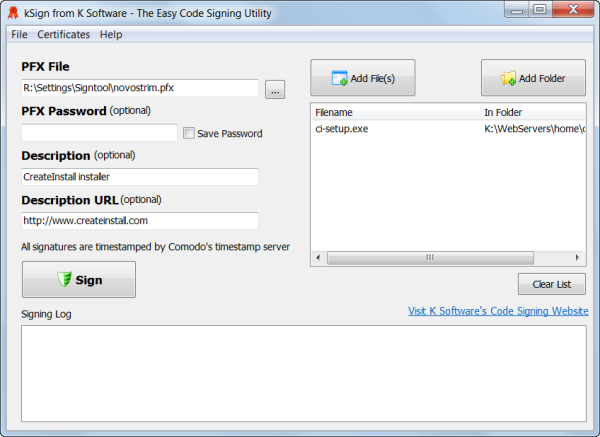
kSign
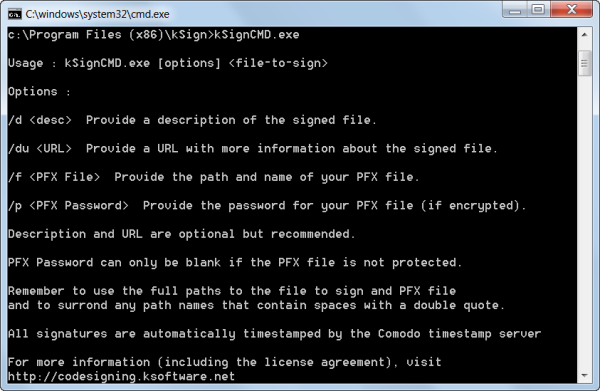
kSignCMD
How to sign an installation in CreateInstal
Of course, you can sign installations created with CreateInstall independently, but it is better to automate the process. Our installer allows you to sign uninstall.exe and update.exe, which will be decompressed further during the installation process. Let's look at the following solution, using the utility kSignCMD.exe, which is part of the program kSign. Create a .bat file with the following contents and save it in a secret place. It is most important that it be available at the moment of your distribution's assembly. Substitute [pfxfile] with the full path to your .pfx file and substitute [password] with your password. The command pause is necessary to find mistakes, which could arise while trying to sign an application. This command requires you to press a button on the keyboard to continue the process of creation of your distribution.
"C:\Program Files (x86)\kSign\kSignCMD.exe" /f  "[pfxfile]" /p [password] %1 %2 %3 %4 %5
pause
Now, open your project in CreateInstall and go to the tab Project – Setup Builder page. Enter the full path to the .bat file we created in the field Application for Code Signing. It will be launched when you need to sign an application. Next enter the parameters for signing your distribution, uninstaller and program to check for updates. The first parameter must be defined as the general name of the program, and the second as
Parameters for Signing of Installation File: Setup "<exefilename>"
Parameters for Signing of Uninstaller File: Uninstall "<exefilename>"
Parameters for Signing of Updater File: Update "<exefilename>"
In this case, CreateInstall will call our .bat file to sign the installation, uninstallation, and program to check for updates if you enable it in your project.