
Uninstall Script
You must include all the required script commands for your uninstallation on this tab. The setup program will do ONLY what you specify here. If you see a 'Folder' image at the left of the item, you may open it like a folder by pressing Enter or double-clicking. This allows you to insert other commands inside. For example, Dialog - Progress executes all its commands and waits for them to finish. The left panel contains a list of all available commands. To the right of this, in the central tree panel the commands of the current script are displayed. They are executed one by one when the user runs the installation (uninstallation). On the right side, you can see the parameters of the current command, which you can edit.
Icon file
The icon for the executable file (setup or uninstaller). If the icon file contains frames with sizes greater than 64x64, and if the icon is added to an executable file, those frames will be ignored.
Resource file
You can specify a resource .RES file with any additional resources necessary your installation.
Manifest File
Optionally, you can specify your own manifest file for the uninstall file. It should be noted that in this case, the Administrator rights are not required checkbox will be ignored. You must specify the appropriate rights yourself in the manifest file.
Administrator rights are not required
Checked => The executable file does not required administrative rights. The UAC prompt is not shown when the user runs the file. Be careful, check this only if you know what you are doing. For example, if it is checked then the application can not delete anything from Program Files and from HKEY_LOCAL_MACHINE of the Registry etc.
Prior checking of rights
The script may contain internal requests/commands that require other rights. If the user is running the installer, this will be checked first. Select what to do if the user does not have the appropriate rights.
No - No checking, the installer can run.
Message & Continue - Warning message and allows to installer to run.
Message & Close - Error message and closing the installer.
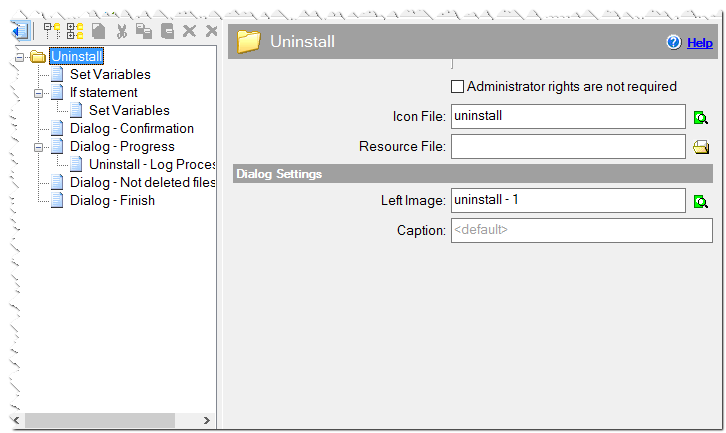
Root of Uninstall Script
Dialog Settings
Left image
The image on the left for dialogs which have such a feature.
Caption
The caption for dialog windows.