
Install Script
You must specify all the required script commands for your installation on this tab. The setup program will do ONLY what you specify here. If you see a 'Folder' image at the left of the item, you may open it like a folder by pressing Enter or double-clicking. This allows you to insert other commands inside. For example, Dialog - Progress executes all its commands and waits for them to finish.
The left panel contains a list of all available commands. To the right of this, in the central tree panel the commands of the current script are displayed. They are executed one by one when the user runs the installation (uninstallation). On the right side, you can see the parameters of the current command, which you can edit.
Icon file
The icon for the executable file (setup or uninstaller). If the icon file contains frames with sizes greater than 64x64, and if the icon is added to an executable file, those frames will be ignored. If you don't want that the installer cuts the icon then specify a global variable fullicon as 1. You can do that in Menu - Tools - Global Variables or Project - Setup Builder. In this case, you should specify a big icon for the uninstallation too.
Resource file
You can specify a resource .RES file with any additional resources necessary for your installation.
Manifest File
Optionally, you can specify your own manifest file for the setup file. It should be noted that in this case, the Administrator rights are not required checkbox will be ignored. You must specify the appropriate rights yourself in the manifest file.
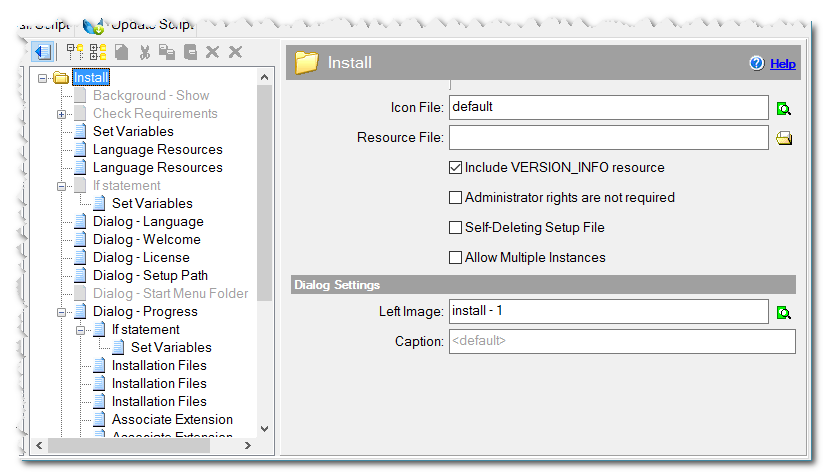
Root of Install Script
Include VERSION_INFO resource
Checked => The VERSION_INFO resource is included into the setup file. You have to specify Version in the Product details page , which will be included in the installation..
You can specify your own values for VERSION_INFO resource. Specify the following global variables in Tools-Global variables or in Project - Setup Builder - Multi Build.
verprod - Product name. By default, it equals '[program]'.
unverprod - Product name for uninstall.exe.
upverprod - Product name for update.exe.
verdescr - Description. By default, it equals '[program] Setup'.
unverdescr - Description for uninstall.exe. By default, it is '[program name] Uninstall'.
upverdescr - Description for update.exe. By default, it is '[program name] Update'.
vercopy - Copyright information. By default, it equals 'Copyright (c) [year] [company]'.
verlang - Language. You can specify the language as langid/codepage, where langid can be taken from https://msdn.microsoft.com/en-us/goglobal/bb964664.aspx, and codepage is the number of code page. The numbers must be specified in decimal form. Example, 1033/1252. By default, it equals English (USA) = 1033/1252.
Administrator rights are not required
Checked => The executable file does not require administrative rights. The UAC prompt is not shown when the user runs the file. Be careful, check this only if you know what you are doing. For example, if it is checked then the application can not write anything into Program Files and into HKEY_LOCAL_MACHINE of the Registry etc.
Prior checking of rights
The script may contain internal requests/commands that require other rights. If the user is running the installer, this will be checked first. Select what to do if the user does not have the appropriate rights.
No - No checking, the installer can run.
Message & Continue - Warning message and allows to installer to run.
Message & Close - Error message and closing the installer.
Self-Deleting Setup File
Checked => After the installation completes, the executable installation file is deleted. The file is deleted, even if it has an Read Only attribute. The installation file is deleted even if the user has stopped the installation himself/herself or the installation is interrupted by the command Exit/Reboot. Note, the file is not deleted in the following cases: if it is located on the CD/DVD drive, a write-protected flash-drive or if the user (who runs the installation) does not have adequate permissions to delete it. There is a variable selfdelete, which can manage this option. If it equals 1, then the installation file will be removed upon completion. You can change the value of this variable at any time during the installation process.
Look at an example: when you want to delete the installation file only if the installation completes successfully. In this case, do not check this checkbox, and insert the command Set Variables at the end of the script and set the value of selfdelete to 1. This checkbox sets the initial value of the variable selfdelete only, and you can change its value in later commands.
Allow Multiple Instances
Checked => By default, the user cannot run two instances of the installation. If you check this checkbox, the user can execute any count of installation instances at the same time.
Dialog Settings
Left image
The image on the left for dialogs which have such a feature.
Caption
The caption for dialog windows.