
Output settings
Here, you can indicate options, which are responsible for the name, location and other parameters of the resulting installation file.
Setup Output
Output Folder
Indicate the directory, in which your installation file will be saved.
Setup Executable
The name of your executable installation file.
setup.exe
myapp-setup.exe
Icon File
You can choose one of the existing icons for your installation or specify any other .ico file with the desired icon.
Administrator rights are not required
You can check this option if you do not plan to install anything to Program Files and system directories, and will not record HKEY_LOCAL_MACHINE to the registry. If you do so, Windows will not show the user a warning window (UAC) when your installation launches. For example, you might want to check this option to create simple self-extracting archives.
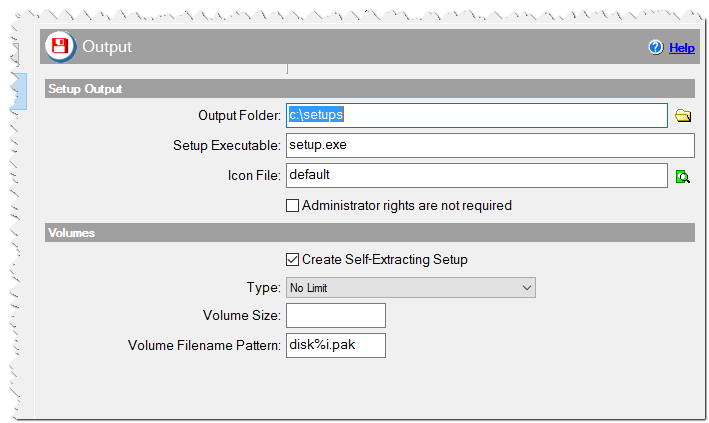
Output Settings in CreateInstall Assistant installer
Volumes
Use partitioning to separate large installations into several files.
Create Self-Extracting Setup
If you check this option, installation files will be written into an executable file (setup.exe). If you don't you will have a small setup.exe and one or more additional archival files (disk1.pak). If you have an installation file larger than 100-200 MB it is better to disable this option because it will take a long time to load upon launch of the installation.
Type
No limit - The installation file will not be broken into smaller volumes; all files will be in one archive.
Volume size (KB) - The archive with files will be broken into volumes, the size of which you must indicate in kilobytes below.
Volume size (MB) - The archive with files will be broken into volumes, the size of which you must indicate in megabytes below.
Volume size
The size of volumes in kilobytes or megabytes if the corresponding option above was chosen.
Volume Filename Pattern
If you create a multi-volume installation, you can specify the volume name template here. If you specify disk%i.pak then the volumes will have the following names: disk1.pak, disk2.pak, disk3.pak etc.
disk%i.pak
myapp%02i.dat