
Copy Files & Folders
Copies files and folders to the specified directory.
Description
Optionally, you may add comments here describing the purpose of this element.
Path
Choose the path for the source files or directory.
APPLICATION DATA PATH - Program subfolder in Application Data folder.
CDROM PATH - CD or DVD drive.
CUSTOM PATH - The path must be defined in the filename control.
INSTALL PATH - Default installation path.
SETUP FILE PATH - The path to where setup executable file is running.
SYSTEM PATH - Windows system directory.
TEMPORARY PATH - The temporary folder of the installation #tempinstpath#. It is a subfolder genteeXX in the default temporary user's folder #temppath#.
WINDOWS PATH - Windows directory.
Filename or Wildcard
You may specify the name or wildcard for copying files or directories. You should to specify a full path if you selected CUSTOM PATH.
*.*
myfolder\*.dat
Recursive Search
Checked => enable the recursive search in all subdirectories.
Only Search for Files
Checked => use only the specified wildcard to search for files.
Destination folder
Choose the destination path to which files and folders will be copied.
APPLICATION DATA PATH - Program subfolder in Application Data folder.
CDROM PATH - CD or DVD drive.
CUSTOM PATH - The path must be defined in the filename control.
INSTALL PATH - Default installation path.
SETUP FILE PATH - The path to where setup executable file is running.
SYSTEM PATH - Windows system directory.
TEMPORARY PATH - The temporary folder of the installation #tempinstpath#. It is a subfolder genteeXX in the default temporary user's folder #temppath#.
WINDOWS PATH - Windows directory.
Custom Path
Here you can specify any destination path, if CUSTOM PATH is selected in the Destination folder field.
If the File Exists
What should be done if a file being installed already exists on user's hard drive.
Skip - do not extract the file.
Overwrite - overwrite the existing file.
Overwrite if newer - overwrite the file only if the file is newer or has a later version than the already existing one.
Ask - prompt the user to select an appropriate action.
Ask if newer - request directions from user only if the file is newer or has a later version than the already existing one. Otherwise, the file will be skipped.
Note! If a file must be updated, but is locked by the system or by other applications, at the end of the installation the user will be asked to reboot the computer. Such files will be updated after the reboot.
If Condition
You can specify a condition that should be met for the action to be performed. If the condition is false then the command is skipped. See How to use If Condition for more details.
Show Error Message If Files have not been found
Checked => The error message is displayed and the setup is closed if the source files have not been found.
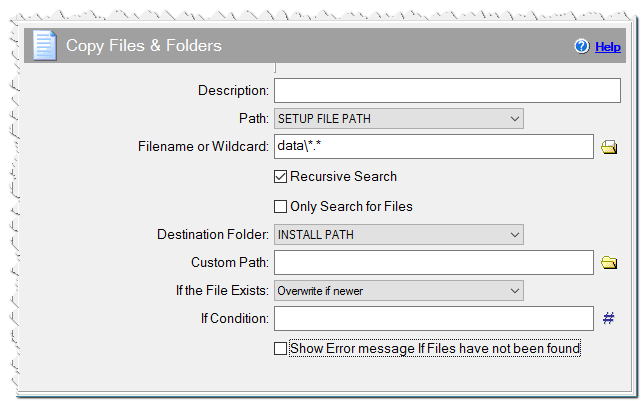
Copy Files & Folders command