
Installation Files
Unpacks files into a specified directory. This command compresses specified files into a setup file and then unpacks them during the installation process.
Description
Optionally, you may add comments here describing the purpose of this element.
Compression Type
Specify the compression algorithm to be used for all files in the current group. The following options are possible:
DEFAULT - Compression based on LZ algorithms. This algorithm provides very fast unpacking.
PPMD - PPMD compression algorithm. This algorithm provides excellent compression ratio, but unpacking time is the same as compression time. Therefore, unpacking is slow. This compression method was adapted for CreateInstall by Dmitry Shkarin (author of PPMD).
STORE - Do not compress files. Use this for files that are already compressed.
Ratio
If you use DEFAULT or PPMD compression, the compression ratio may vary from 1 to 10. A higher compression ratio means smaller file size, but slows down the compression process.
Solid Compression
Checked => Information about already compressed files is used for compressing subsequent files. This provides a better compression ratio for a large number of uniform files. Please note that if you use PPMD compression, enabling this option may worsen the compression ratio for some files.
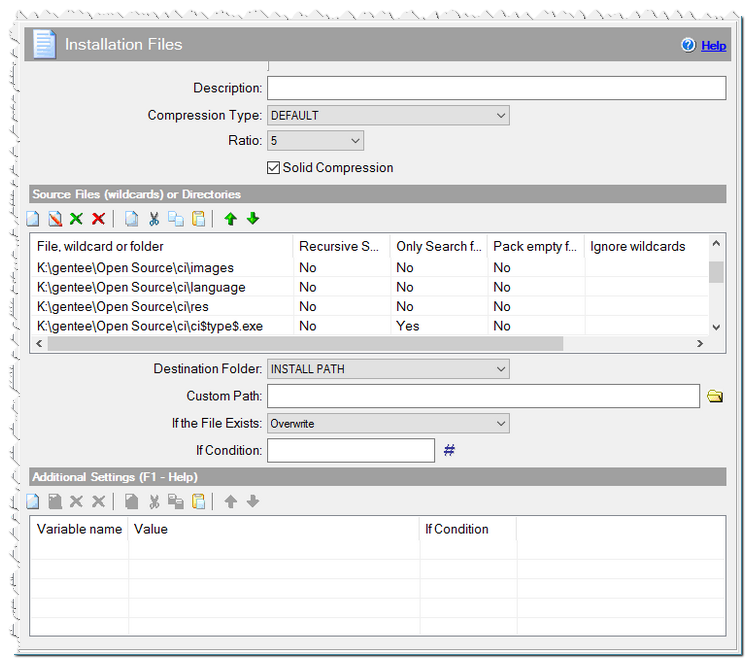
Installation Files command
Source files (wildcards) or directories
File, wildcard or folder
Enter the name of a file (including the full path and drive designation) or a folder on your computer, which should be included in the setup, using the browsing buttons. If you enter a directory, it will be compressed with all of its files and then re-created on the target computer.
C:\data\*.dbf
C:\myapp\*.*
C:\picture
C:\files\myfiles.a??
Recursive Search
Checked => enables recursive search in all subdirectories.
Only Search for Files
Checked => uses only the specified wildcard to search for files.
Pack empty folders
Checked => adds empty folders into your setup.
Ignore wildcards
You can specify wildcards of excluded files . The wildcards should be separated by semicolons. These files will be ignored during the compression process. You can use the characters '*' and '?'.
*.bak; temp*.dat
Comment
You can add a comment for this setting here.
Unpacking options
Destination folder
Choose the installation path on the user's computer in which files are to be unpacked.
APPLICATION DATA PATH - Program subfolder in Application Data folder.
CDROM PATH - CD or DVD drive.
CUSTOM PATH - The path must be defined in the filename control.
INSTALL PATH - Default installation path.
SETUP FILE PATH - The path to where setup executable file is running.
SYSTEM PATH - Windows system directory.
TEMPORARY PATH - The temporary folder of the installation #tempinstpath#. It is a subfolder genteeXX in the default temporary user's folder #temppath#.
WINDOWS PATH - Windows directory.
Decompress later - You can unpack these files later with the command Decompress Files.
Custom Path
Here you can specify any destination path, if CUSTOM PATH is selected in the Destination folder field.
If the File Exists
What should be done if a file being installed already exists on user's hard drive.
Skip - do not extract the file.
Overwrite - overwrite the existing file.
Overwrite if newer - overwrite the file only if the file is newer or has a later version than the already existing one.
Ask - prompt the user to select an appropriate action.
Ask if newer - request directions from user only if the file is newer or has a later version than the already existing one. Otherwise, the file will be skipped.
Note! If a file must be updated, but is locked by the system or by other applications, at the end of the installation the user will be asked to reboot the computer. Such files will be updated after the reboot.
If Condition
You can specify a condition that should be met for the action to be performed. If the condition is false then the command is skipped. See How to use If Condition for more details.
Additional settings
allfolders - assign it to 1 if you want to include folders which are not empty but all their files were excluded.
groupname - specify the name of the group if you want to unpack these files later with the command Unpack Files.
password - you can protect these files with a password.
compact - you can specify file wildcards to compress using the Windows program compact. File wildcards are listed with a semicolon. Search recursively for all files from the destination directory that match all masks. Compressed files have a special attribute that indicates that the file is compressed by the built-in Windows tools.
compact=*.xls;*.doc
unlog - The custom Uninstall Log Mode. The current value will be restored before the next command. Possible values: on - On, off - Off, on1 - On (Mode 1), on2 - On (Mode 2).
unlogfile - Custom File uninstall mode. The current value will be restored before the next command. Possible values: delete - Delete, confirm - User confirmation, list - Add to file list.
Xfilter - The filter function for unpacking files. See How to specify a filter for the installation of files for more details.
unlog => on1
unlogfile => delete
Xfilter => filtercmdproc
Comment
You can add a comment for this setting here.